
 Posted by
 If you are an experienced Linux user, chances are that you used or using a tiling window manager in your setup. At least this is the case for me in my Arch Linux install.
In previous posts I covered how to get multi-touch touchpad gestures and caffeine like functionality.
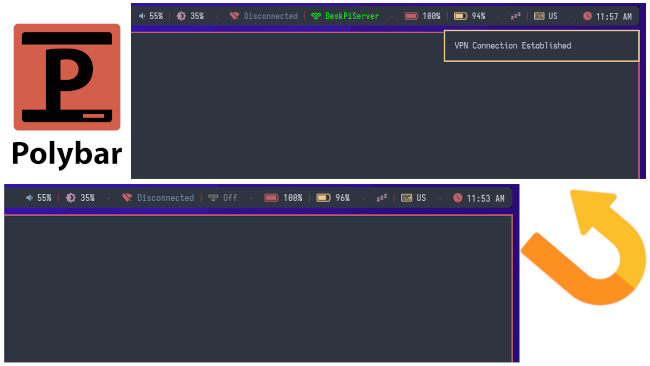
In this post we will focus on getting WireGuard implemented in Polybar. If you have not set up WireGuard yet refer to this excellent guide!
Complete Guide with Clickable Toggle Scripts
Do you want a one-click VPN toggle integrated into your Polybar, directly controlling your WireGuard VPN connections? This guide will show you how to set it up using Bash scripts, rofi menus, and Polybar modules on Arch Linux with BSPWM.
TIP: The guide should work with other Linux distros and tiling WMs (running Polybar). You just need to adjust paths and package installations accordingly!
We’ll cover:
- Single or multiple WireGuard configurations.
- Visual ON/OFF status with colored icons.
- Clickable toggle via Polybar.
- Dunst notifications for connection status.
- Dependencies and installation.
Prerequisites & Dependencies
Make sure you have the following installed:
sudo pacman -S wireguard-tools polybar rofi dunstOptional but recommended:
sudo pacman -S networkmanager network-manager-appletFolder Structure
We’ll keep our scripts organized in:
~/.config/bspwm/scripts/Create the directory if it doesn’t exist:
mkdir -p ~/.config/bspwm/scriptsIF YOU ONLY HAVE ONE VPN CONFIGURATION SEE ALSO SECTION AT THE END FOR ADJUSTMENTS
Script 1: VPN Toggle Script (vpn-toggle.sh)
This script toggles WireGuard connections. Save as:
~/.config/bspwm/scripts/vpn-toggle.shEdit the first script as follows:
#!/bin/bash

CONFIG="$1"

if [ -z "$CONFIG" ]; then
    dunstify "WireGuard Toggle" "No configuration specified!" -u critical
    exit 1
fi

STATUS=$(sudo wg show "$CONFIG" 2>/dev/null | grep interface)

if [ -z "$STATUS" ]; then
    sudo wg-quick up "$CONFIG" && dunstify "WireGuard" "$CONFIG Connected" -u normal
else
    sudo wg-quick down "$CONFIG" && dunstify "WireGuard" "$CONFIG Disconnected" -u normal
fi
Don’t forget to make the script executable:
chmod +x ~/.config/bspwm/scripts/vpn-toggle.shScript 2: VPN Rofi Menu (vpn-menu.sh)
If you have multiple WireGuard configs, this script will let you pick which one to toggle using rofi. Save as:
~/.config/bspwm/scripts/vpn-menu.shEdit the second script as follows:
#!/bin/bash

CONFIGS=($(ls /etc/wireguard/*.conf | xargs -n 1 basename | sed 's/.conf//'))

if [ ${#CONFIGS[@]} -eq 1 ]; then
    ~/.config/bspwm/scripts/vpn-toggle.sh "${CONFIGS[0]}"
else
    SELECTED=$(printf "%s\n" "${CONFIGS[@]}" | rofi -dmenu -p "Select VPN")

    if [ -n "$SELECTED" ]; then
        ~/.config/bspwm/scripts/vpn-toggle.sh "$SELECTED"
    fi
fi
Make the script executable:
chmod +x ~/.config/bspwm/scripts/vpn-menu.shScript 3: VPN Status Script (vpn-status.sh)
This script checks if any VPN is connected and outputs an icon with color. Save as:
~/.config/bspwm/scripts/vpn-status.shEdit the third script as follows:
#!/bin/bash
CONFIGS=($(ls /etc/wireguard/*.conf | xargs -n 1 basename | sed 's/.conf//'))
ACTIVE=""
for CONFIG in "${CONFIGS[@]}"; do
STATUS=$(sudo wg show "$CONFIG" 2>/dev/null | grep interface)
if [ -n "$STATUS" ]; then
ACTIVE="$CONFIG"
break
fi
done
if [ -n "$ACTIVE" ]; then
echo "%{F#00FF00} ON%{F-}"
else
echo "%{F#888888} OFF%{F-}"
fiTip: If the icon is not showing in Polybar it means you do not have the necessary font installed. I suggest installing a glyph nerd font such as JetBrains Nerd Font and using that as your primary Polybar font.
Make the script executable:
chmod +x ~/.config/bspwm/scripts/vpn-status.shPolybar Module Configuration
Edit your ~/.config/polybar/config.ini (if you have a separate modules.ini configuration file used that) and add:
[module/vpn]
type = custom/script
exec = ~/.config/bspwm/scripts/vpn-status.sh
interval = 5
click-left = ~/.config/bspwm/scripts/vpn-menu.sh
label-padding = 2
Then, include the module in your Polybar bar section:
modules-center = vpnGive Scripts Sudo Access (Optional but Recommended)
You’ll want to avoid password prompts every time the scripts are executed:
sudo visudoAdd this line at the end (replace dimitris with your username):
dimitris ALL=(ALL) NOPASSWD: /usr/bin/wg-quick up *, /usr/bin/wg-quick down *, /usr/bin/wg show *Final Steps
- Reload Polybar:
polybar-msg cmd restart
- Click the VPN icon to toggle connections.
- Green icon = Connected. Gray icon = Disconnected.
- For multiple configs, a Rofi menu will appear to choose which VPN to toggle.
For Single WireGuard Configurations
To find the available WireGuard configurations and their names look for the .conf files under /etc/wireguard/ (you will need root privileges to access this folder)
If you only have one WireGuard config, you can simplify:
- You don’t need
vpn-menu.sh. - Change the
click-leftaction in Polybar to:
click-left = ~/.config/bspwm/scripts/vpn-toggle.sh HomeServerReplace HomeServer with your config name.
Conclusion
You now have a seamless Polybar VPN toggle, fully integrated with visual status icons, rofi menus, and desktop notifications on Arch Linux. Simple, fast, and hacker-friendly!